Running Inspections
The inspection wizard guides you step-by-step through every safety, continuity, and documentation check needed to complete a TankSafe job. This version focuses on what you see on screen, how to keep progress safe, and where to go if you need help.
Start a new inspection
Launch the wizard from any of these entry points:
- Dashboard → Start New Inspection to spin up a fresh job immediately.
- Admin Jobs → New Inspection when you are already viewing the admin schedule.
- Job detail → Continue inspection if you are resuming work that already exists.
If you arrive via Start New Inspection, confirm the job number before you move on. Administrators can edit the job details later, but validating it now saves double-work.
Understand the flow
The wizard highlights your place with a progress indicator at the top. Each section captures a different slice of information:
- Risk assessment & permits – basic job setup, permits, tanker configuration.
- Pressure & leak testing – vapour tightness, leak proofness, and hydro/pneumatic checks.
- Relief valve & continuity – EPRV readings plus continuity matrix data.
- Visual checks & documentation – RVI camera notes, checklist questions, charge sheet items, and supporting photos.
- Thickness testing – annotate inspection drawings with recorded measurements.
You can open any completed step again to review or update details before finishing.
Fill out each step
Every screen offers the same core controls: form fields, grid tables for compartment readings, and buttons along the bottom.
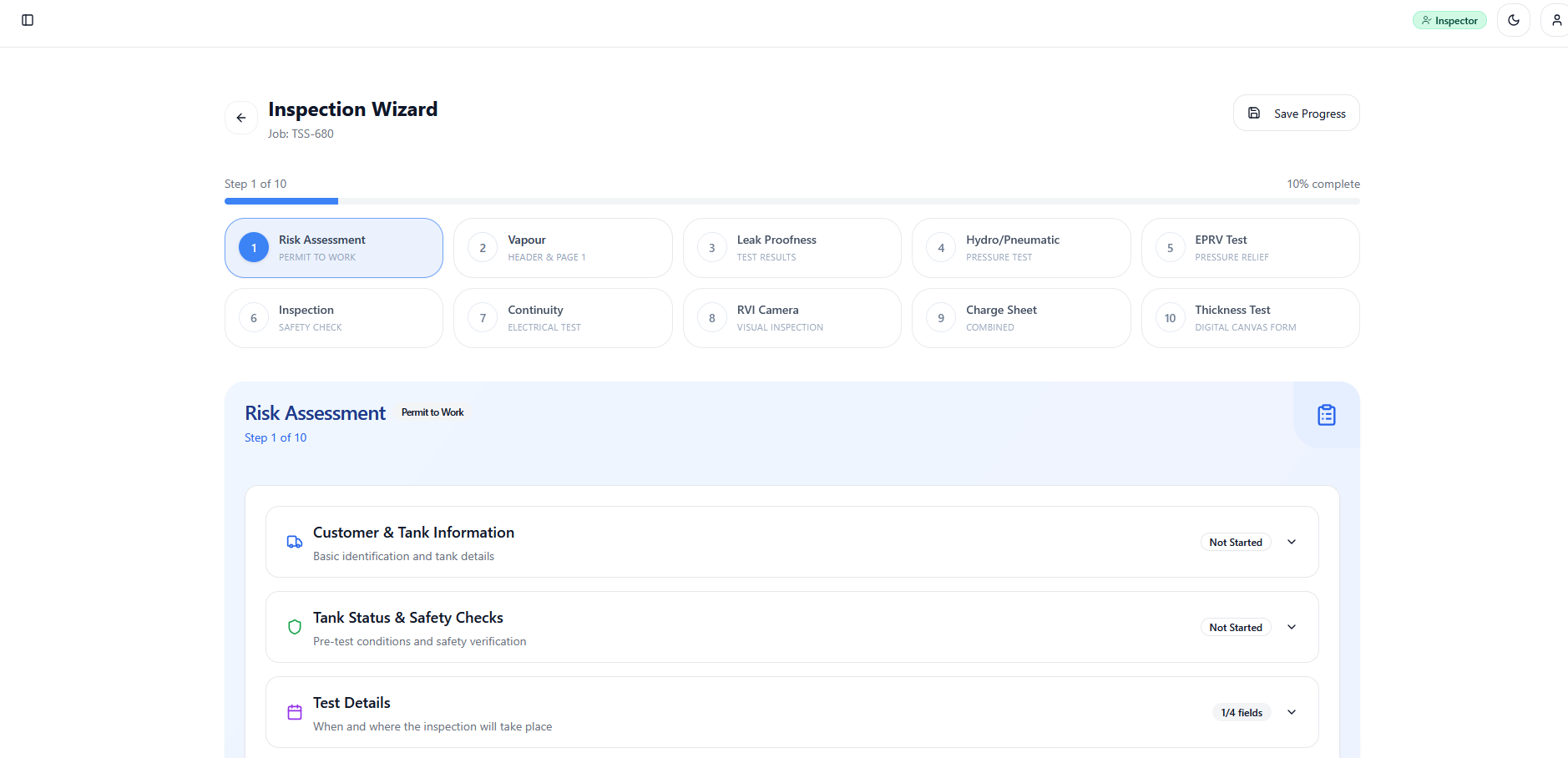
Replace this image with a capture of a real step (for example, Vapour Tightness) when ready.
- Use Save & Continue to store your entries and jump forward.
- Use Save draft (or Save) if you want to keep editing the same step.
- If you navigate away with unsaved changes, the wizard will prompt you before leaving.
Helpful shortcuts
- Grid tables often include autofill options (for example, copy a pressure value across a compartment row).
- The continuity matrix supports fill-by-row or fill-by-column to speed up repeated readings.
- Use the attachment or photo controls within the thickness and checklist steps to capture evidence on the spot.
TankSafe saves each change straight to the cloud. A weak connection can block a save, so watch for any warning toasts before you move forward.
Pause and resume later
Need to stop mid-inspection? Simply close the wizard after saving your current step. When you return to the same job, TankSafe reopens the wizard at the last completed step so you can pick up where you left off.
Finish the inspection
When every section shows a green checkmark, the wizard automatically marks the inspection complete and unlocks the follow-up actions (charge sheet, PDFs, admin updates).
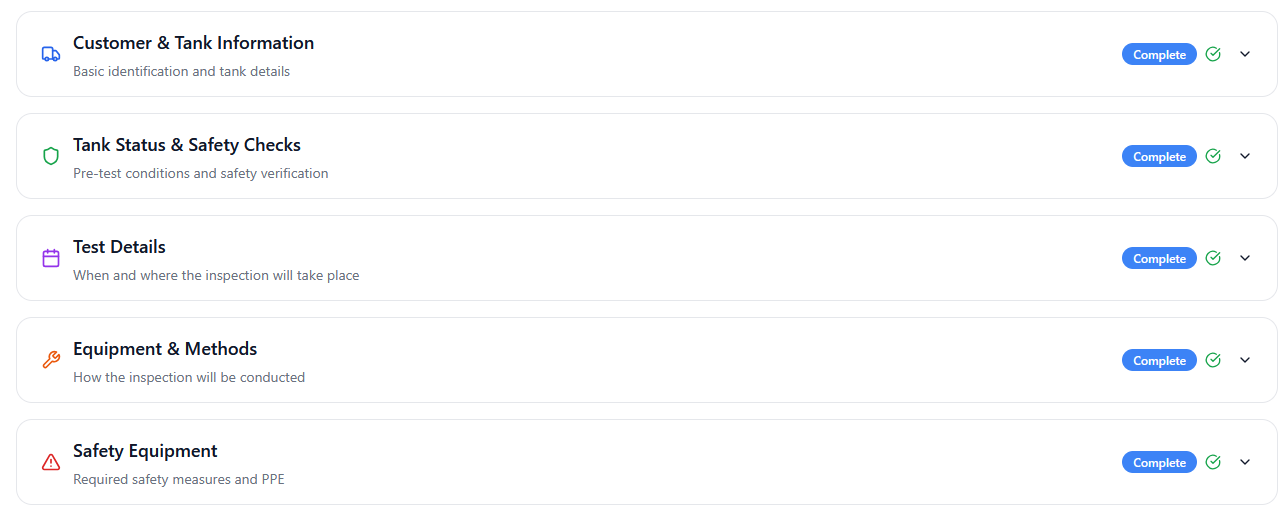
Swap in the actual completion summary screen once you have it.
After reviewing the summary, choose Download charge sheet (if required) or return to the dashboard. Administrators can still adjust the inspection status later from the job detail page.
Tips and troubleshooting
- Fields look locked? Check that you are on the correct step; some sections only unlock after the previous one saves successfully.
- Wizard is blank or throws an error? Refresh the page and confirm the job number still exists. If problems persist, contact an administrator to recreate the inspection.
- Need to correct data later? Head to Admin → Jobs → Edit for the job in question. That page mirrors the same forms without the step-by-step wrapper.
- Charge sheet totals don’t match expectations? Open each tab (Labour, Parts, Work Items) and make sure the quantities and rates are filled in. The totals update as soon as you save.
If something feels stuck, capture the job number, the step you were on, and any on-screen message. Share that with the administrator or support team—they can investigate further and get you moving again.