Getting Started
This guide walks a new TSS user from their invitation email to completing the first inspection. It focuses on the screens and decisions you will see in the live portal.
Before you begin
- Make sure you can access the work email address your administrator used for the invite.
- Use an up-to-date browser such as Chrome, Microsoft Edge, or Safari.
- Have your mobile device handy if your organisation requires multi-factor authentication (MFA).
- Store the portal link from the invitation email so you can return to it later.
1. Accept your invitation
- Open the invitation email on a trusted device and select the Accept Invite button.
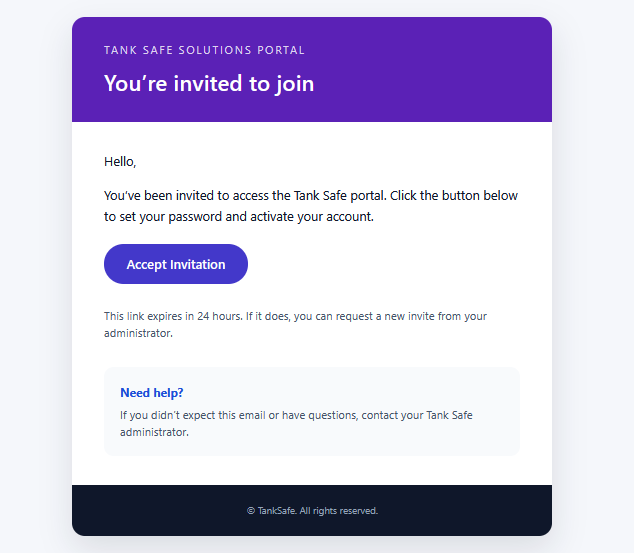
- Enter a secure password (minimum 8 characters) when prompted.
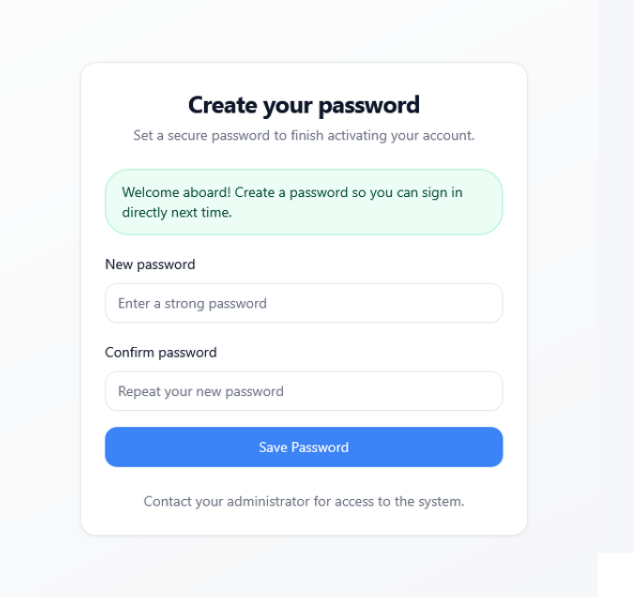
- Confirm the password to finish activating your account. A confirmation message appears when the setup succeeds.
If the invite link has expired or was already used, contact your Tank Safe administrator so they can resend it.
The email may have arrived to your junk folder. Open Junk folder and mark email as not junk.
2. Sign in
-
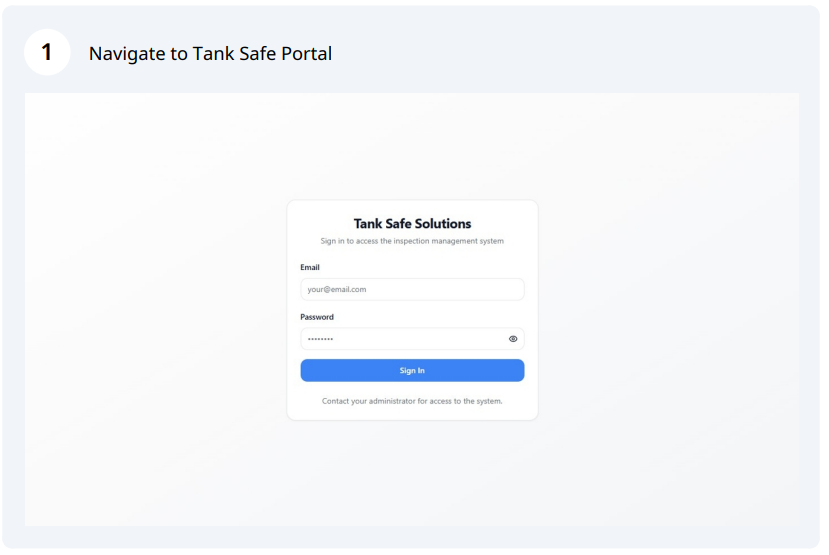
Navigate to the TankSafe portal link provided in your invitation email.
-
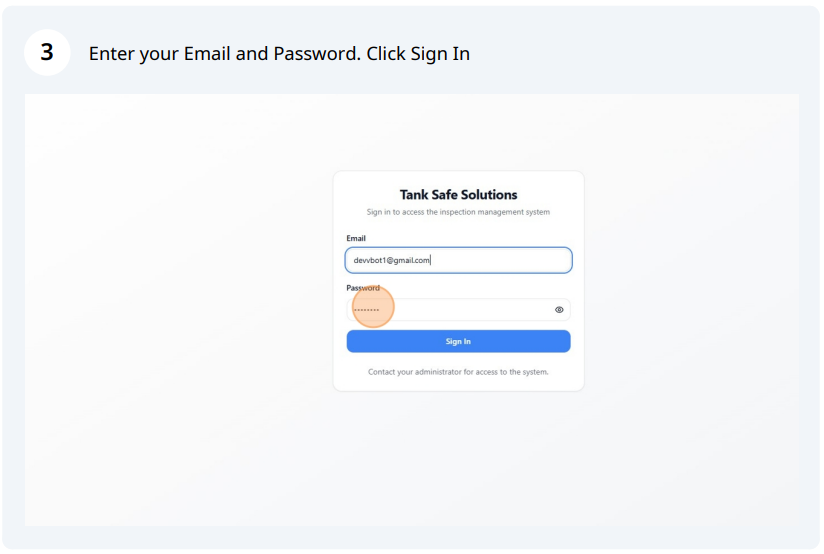
Enter the email address and password you set during the invitation process.
-
Select 'Enable Autenticator App'.
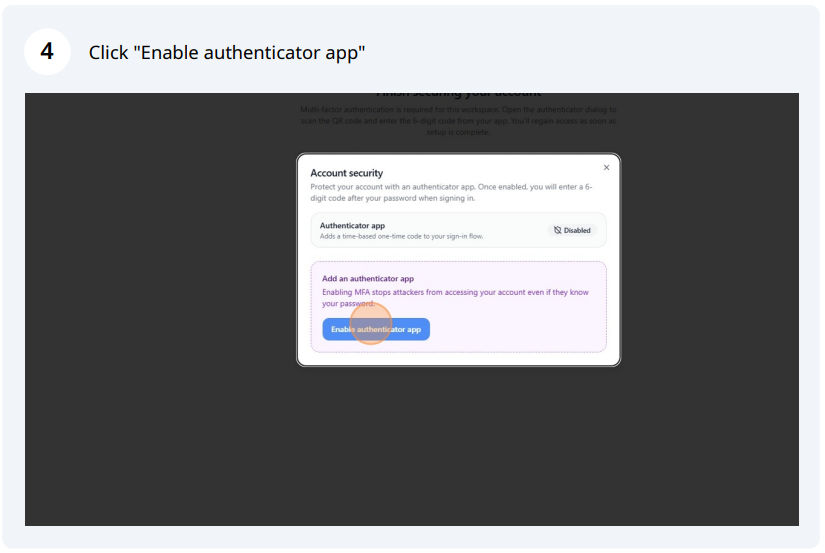
-
Using your desired Authenticator App - Scan the QR Code.
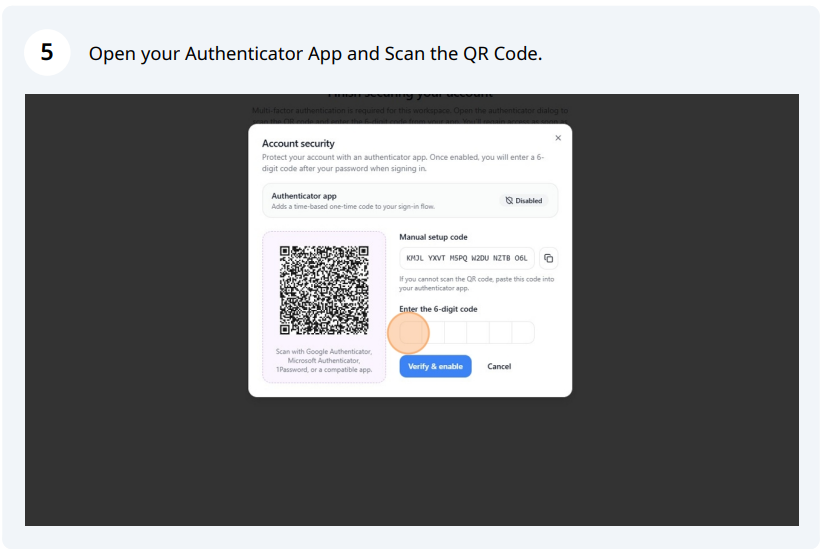
-
Enter the 6 Digits retrieved from your Authenticator App and Click Verify & Enable.
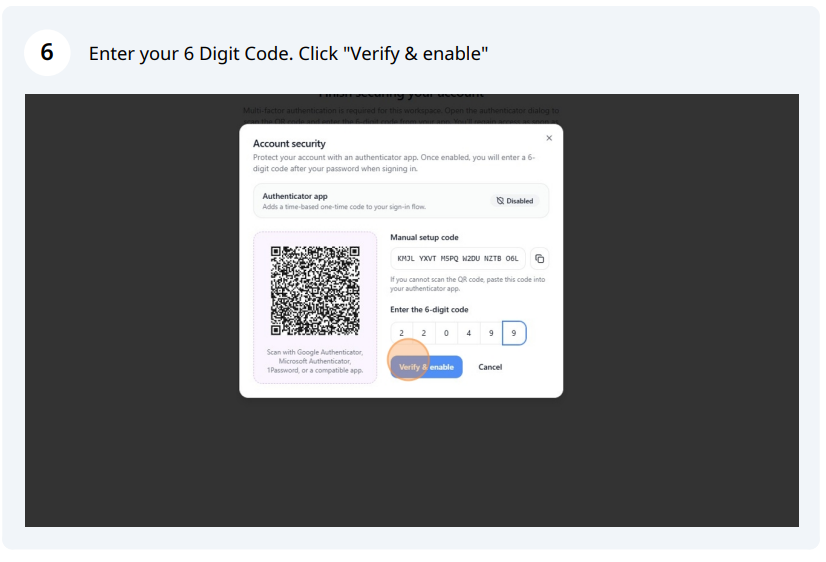
Remember MFA Codes only last for 30 seconds. Just wait for another one to regenorate.
Download one of these trusted options before you continue:
After you sign in successfully, Tank Safe takes you to your home screen. Administrators see the Admin workspace, while inspectors arrive on the dashboard with their assigned work.
3. Understand your role-based access
| Role | What you can access |
|---|---|
| Administrator | Dashboard tiles, job search, all Admin menus (Jobs, Job Detail/Edit, Schedule, Users, Settings) and the inspection wizard.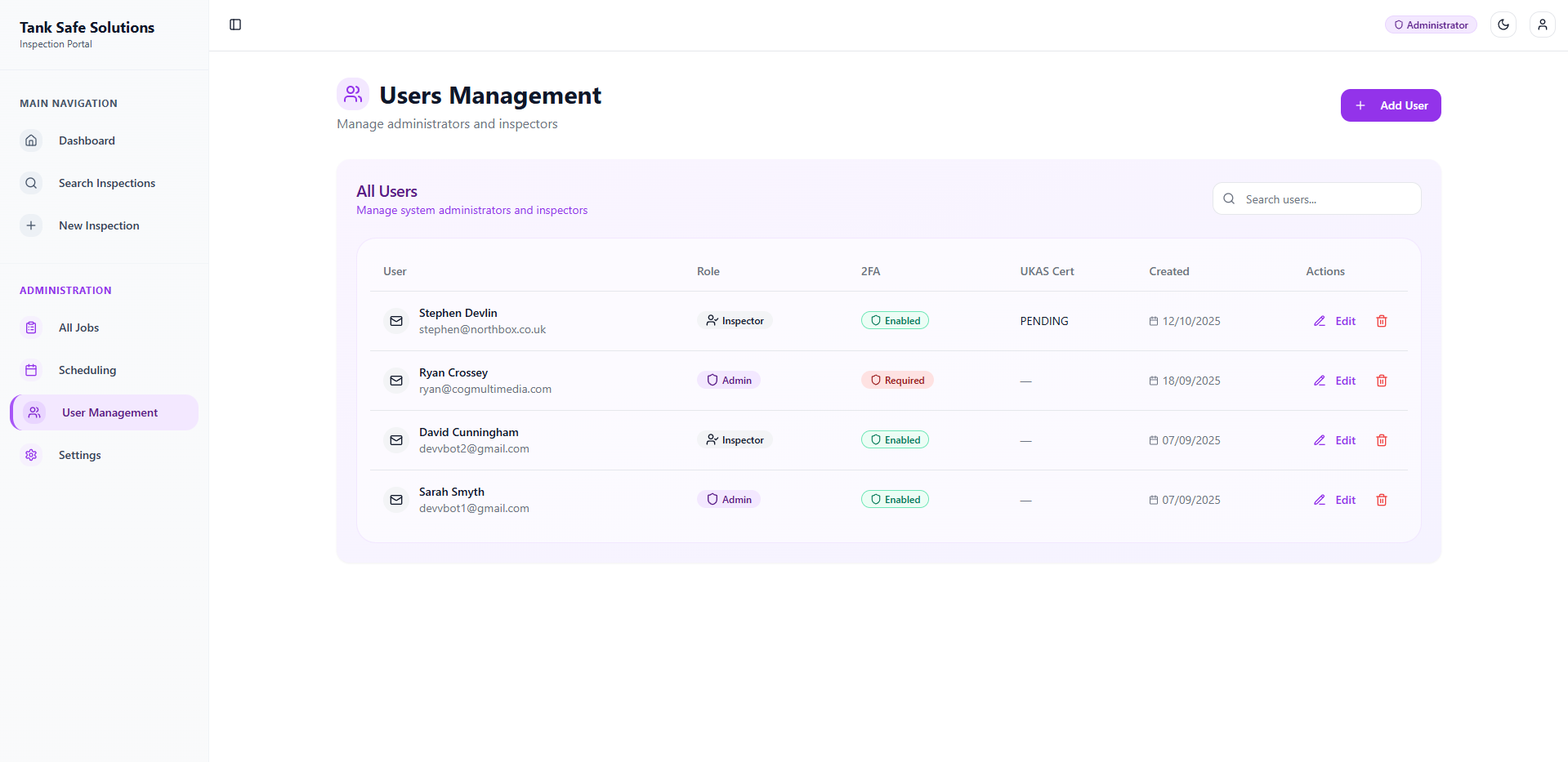 |
| Inspector | Dashboard tiles, job search, the Inspector Jobs list, and the inspection wizard. Admin menus remain hidden. 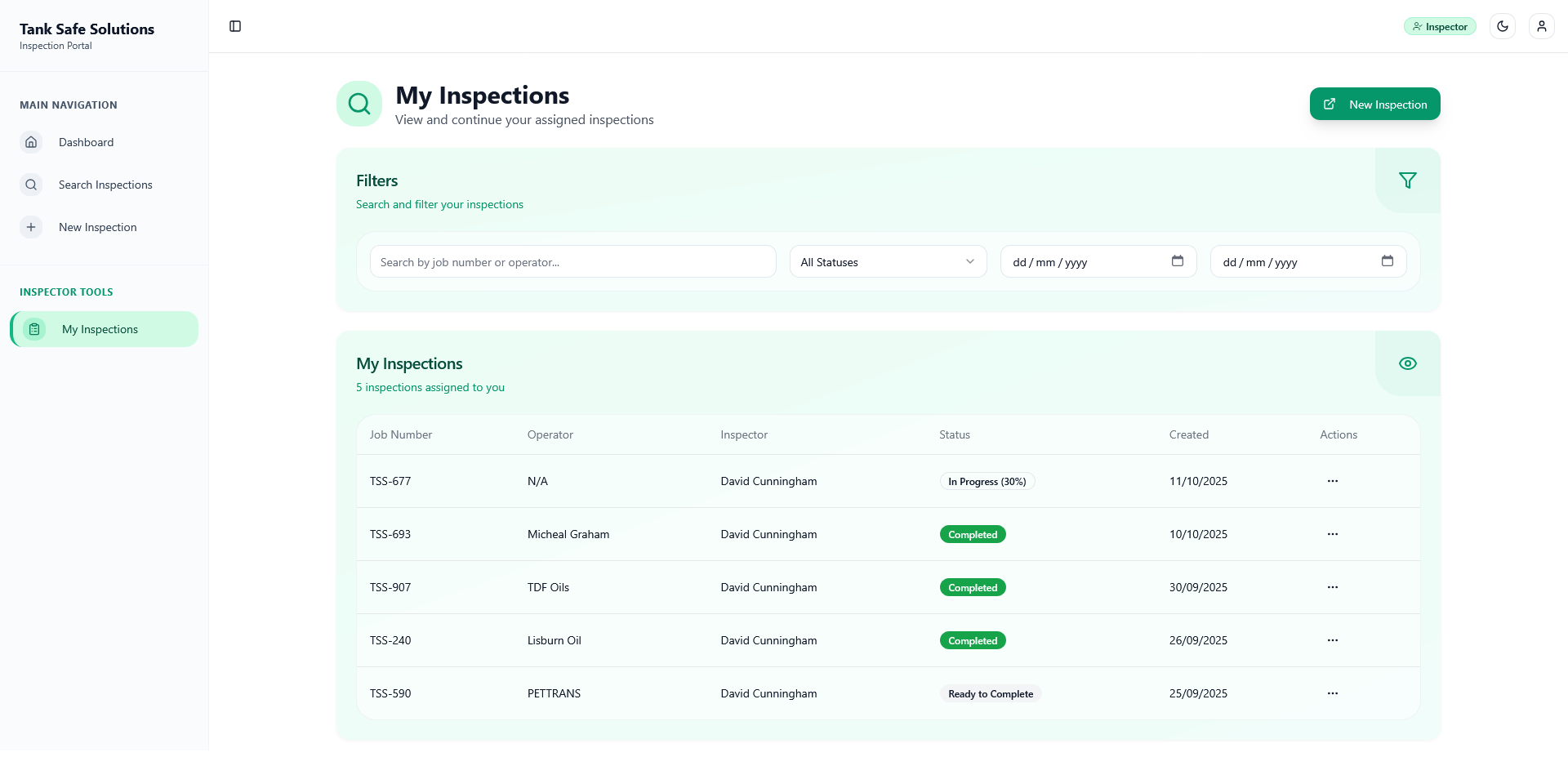 |
If you see a blank screen after sign-in or you cannot open a page you expect to use, contact your administrator so they can confirm your role assignment.
4. Launch your first inspection
- On the dashboard, pick Start New Inspection. Administrators can also go to Admin ▸ Job Management ▸ New Inspection if they want to assign the job to someone else first.
- Check the job details on the opening screen. Fields with an asterisk must be filled before you can continue. A grey Next button means something is still empty.
- Follow the steps listed on the left side. Press Save Progress or Next whenever you finish a screen so TankSafe stores the answers and grid edits.
- Need to attach proof? Use Upload Attachment for photos or documents, or open a signature field, sign, then tap Save Signature. Use Clear if you want to redo it.
- Enter the job number or vehicle reg once and TankSafe fills it into matching fields for you. Fixing the value in one place updates the others.
- You can hop back to any earlier step without losing what is on the current screen. The wizard keeps those edits until you leave the page or refresh.
- Lost connection? Watch for the Offline Draft badge. Finish the page and hit Save Progress once you are back online to sync again.
- For grids that repeat every inspection, try Seed From Last Inspection to copy the baseline values, then adjust what changed.
To pick up where you left off, search for the job number from the dashboard or the Inspector Jobs list and reopen it. TankSafe restores the last saved version, including attachments and signatures.
Tank Safe saves each change straight to the cloud. A weak connection can block a save, so watch for any warning toasts before you move forward.
5. Next steps in the docs
- Dashboard & Search explains the landing page tiles and the tools for finding jobs and inspections.
- Running Inspections breaks down each wizard step and describes how the portal saves your progress.
- Administrator Handbook covers job management, schedule operations, user management, and MFA configuration.