Dashboard & Global Search
The dashboard is the first screen you see after signing in to the Tank Safe Portal. It gives you a quick status summary, shortcuts to start work, and easy ways to locate existing inspections.
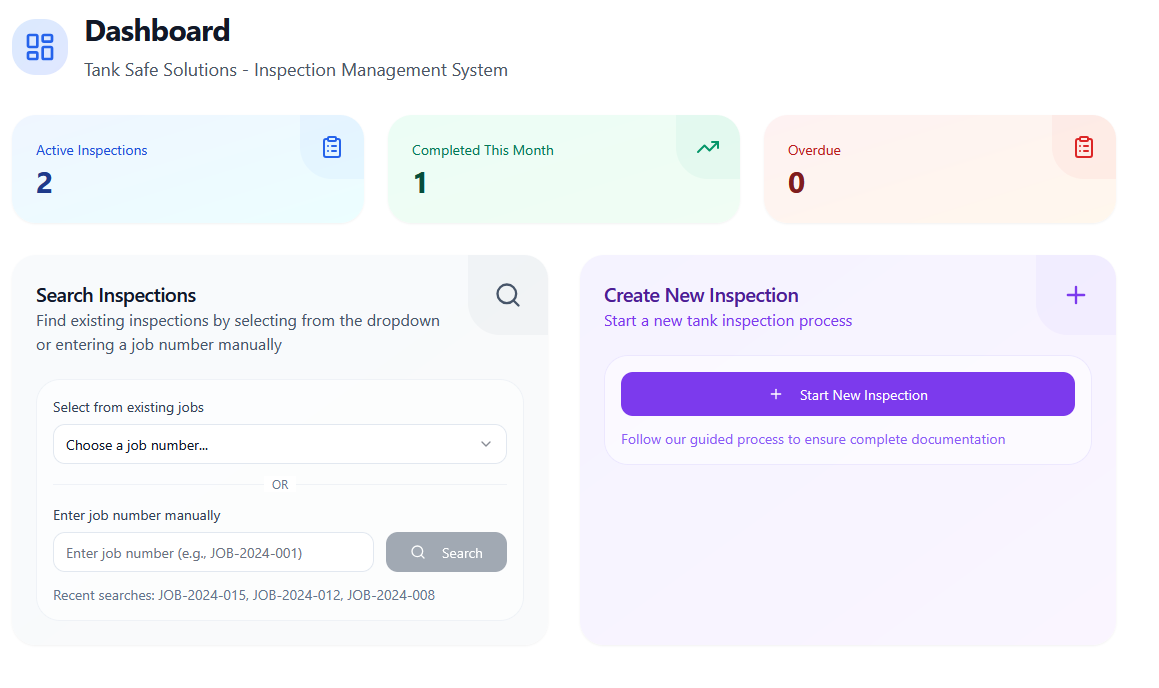
What you see on the dashboard
Three tiles at the top highlight the overall state of your inspections:
- Active inspections – jobs that are underway and still need attention.
- Completed this month – inspections that reached the finish line in the current calendar month.
- Overdue – work that has passed its expected completion date and should be prioritised.
These numbers refresh when you open the dashboard. If any data is unavailable, the tiles display zero so you can still navigate around the portal
Starting a New Inspection
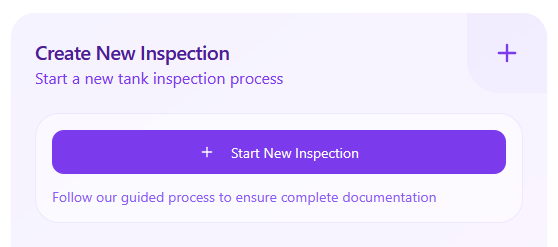
- Start New Inspection – opens the inspection wizard so you can begin a fresh job immediately.
- Manage All Jobs – available to administrators; opens the admin jobs area for broader scheduling and oversight.
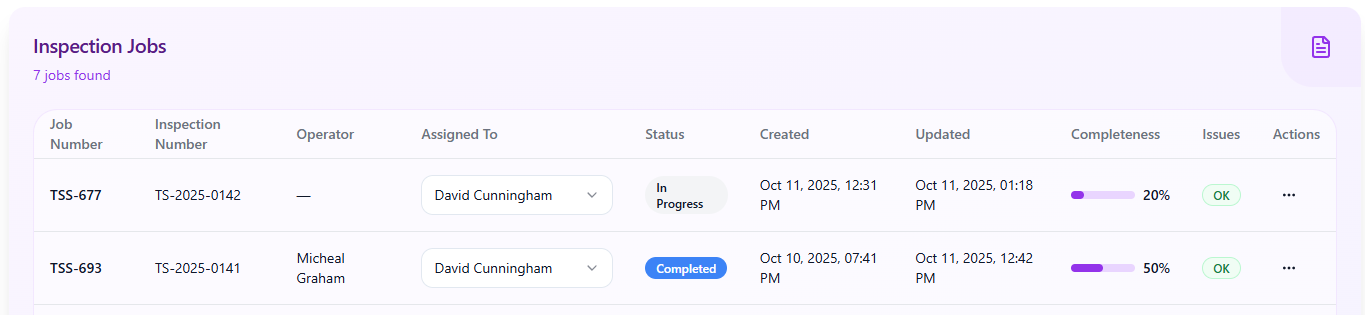
Use these buttons whenever you need to assign work or jump straight into data collection.
Find existing inspections from the dashboard
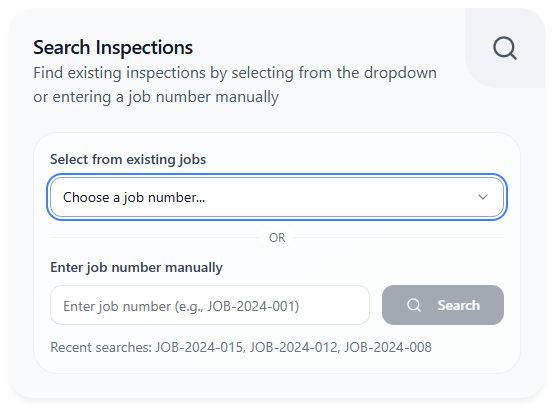
The search card in the middle of the page helps you locate work fast:
- Select one of the recently accessed job numbers from the quick-pick list, or
- Enter a job number manually and press Search to look it up.
The card also offers a short reminder that you can revisit inspections you found recently (the text is informational only).
Global Search page
Select Open full search or head to the Search menu to work with the dedicated search screen. On that page you can:
- Filter by job number, inspection ID, or operator name.
- Narrow the list by status (for example: Draft, In Progress, Completed).
- Limit results to a specific date range.
- Review the results table, which shows each job number, inspection number, operator, status, when it was last updated, and a quick completeness indicator.
- Choose View next to any inspection to open it directly. Administrators also see shortcuts to the detailed admin job view.
If no items match your filters, the page displays a friendly empty state that suggests creating a new inspection instead.
Inspector job list
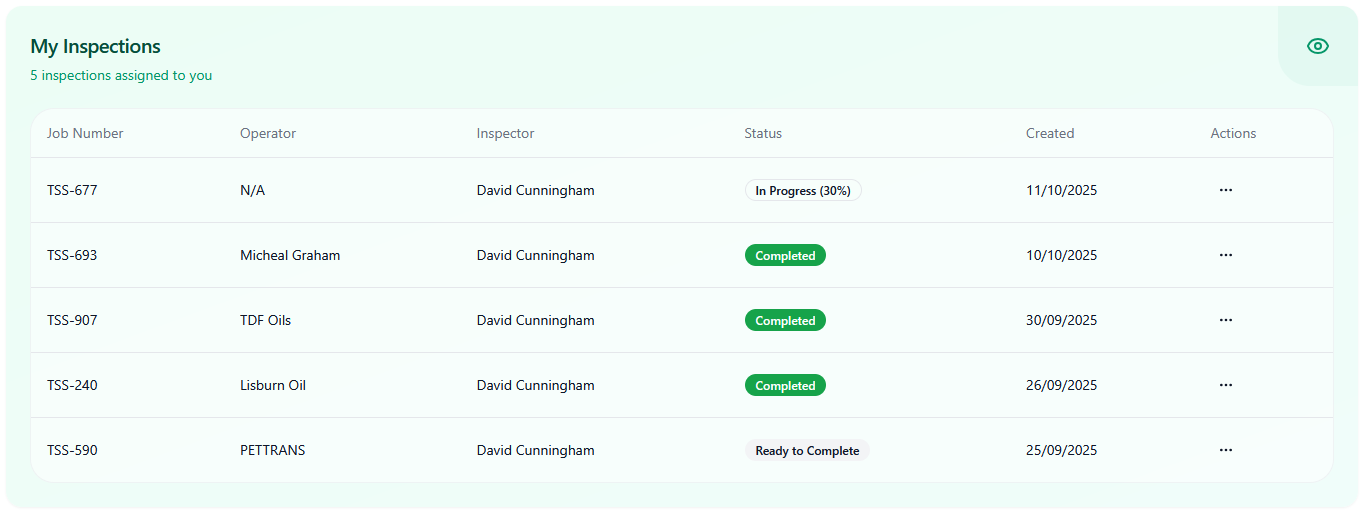
Inspectors can access My Jobs to see the assignments that belong to them. The list supports the same basic filters but automatically focuses on the logged-in inspector. Each row includes a quick action to resume the corresponding inspection.
Tips and troubleshooting
- Refresh the page if the tiles or search list feel out-of-date.
- Clear the filters on the search page to return to a full list of inspections.
- If you expect to see a job but cannot find it, double-check the job number or ask an administrator to confirm your access.